Two useful tabs.
Receipts holds the records. Summary shows the selected year by month and category.
 Sheetify
Sheetify / Free receipt tracker
One place for receipt rows. Monthly and category summaries that update as you add records. A simple start for freelancers and small businesses who like a spreadsheet.
Google Sheets + Excel · Free, with no mailing-list sign-up · Sample data included
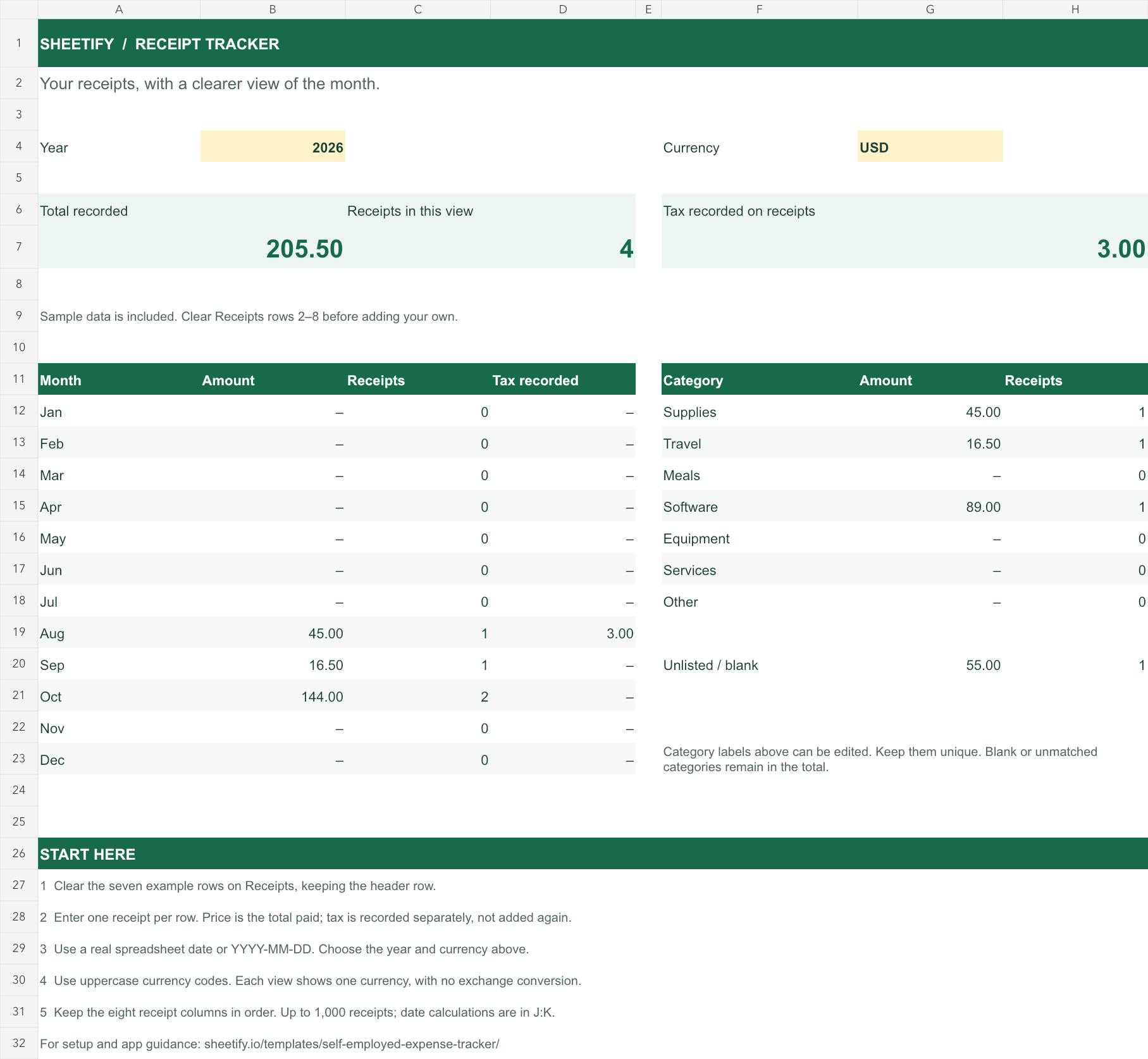
Receipts holds the records. Summary shows the selected year by month and category.
Choose a currency for the summary. No mixed-currency total and no assumed exchange rate.
Each receipt row has a place for its image link, ready when you need to check a detail.
The starter covers up to 1,000 receipt rows. Its summaries expect the eight receipt columns to stay in their original order.
| Column | Use it for |
|---|---|
| Receipt ID | A reference that helps identify the receipt |
| Vendor | The business you paid |
| Price | The total paid, including any tax in that total |
| Currency | A code such as USD, GBP or EUR |
| Date | The date on the receipt |
| Image Url | A link to the original receipt image |
| Category | Your consistent label for that expense |
| Tax Amount | The tax amount recorded on the receipt, if applicable |
The tax summary is separate information. It is not added to the price again and does not determine what tax you can reclaim.
Sheetify reads receipt details on iPhone and Android. Review the result, then send it to the spreadsheet destination configured in the app, with the image saved in Google Drive.
This workbook uses Sheetify’s standard English receipt column names. This template works with manual entry. Direct app delivery into this specific template has not been verified. Google access, the selected spreadsheet and column mapping still matter; follow the app’s destination setup before sending receipts.
Read the receipt-to-Google-Sheets guide →No. The workbook is free to use with manual entry. The app is optional.
No. It summarises the receipt expenses you enter, one calendar year and one currency at a time. It does not calculate profit, convert currencies, determine tax deductions or submit returns.
The receipt stays in the monthly and overall totals. Its amount appears under “Unlisted / blank” until it matches one of the summary’s category labels.
Your Google Sheets copy is stored in your Google Drive. The Excel file stays wherever you save it. Making a copy or downloading this template does not send your receipt records to Sheetify.
Make your own copy and keep your records in a format you can inspect.
Make a copy in Google Sheets →