 Sheetify
Sheetify / Receipt guides / Check your data
Three checks.
Better receipt rows.
A number can look convincing and still be the wrong one. Before a receipt becomes part of your spreadsheet, check the total, the currency and the original image.
15 October 2026 · Illustrated examples with fictional data
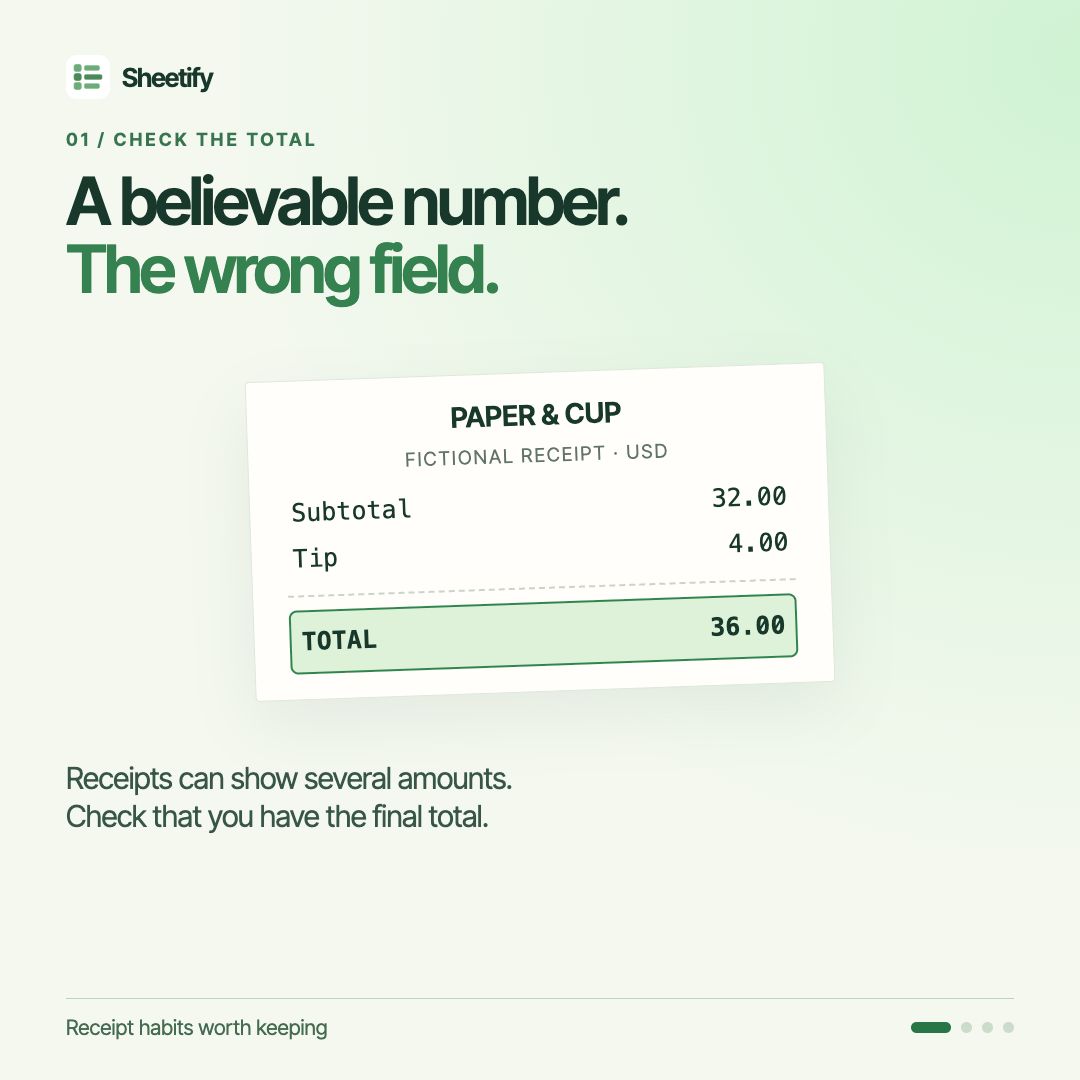
01 / CHECK THE TOTAL
Find the final amount.
A receipt may show a subtotal, a tip and a final total. An extracted number can be perfectly readable while belonging to the wrong field.
In this example, the subtotal is USD 32.00 and the tip is USD 4.00. The final total is USD 36.00. Compare the amount in your proposed row with that final total before sending or importing it.
If the photograph is cropped or unclear, check the original or retake it. Keep the image alongside the record so you can revisit the detail.
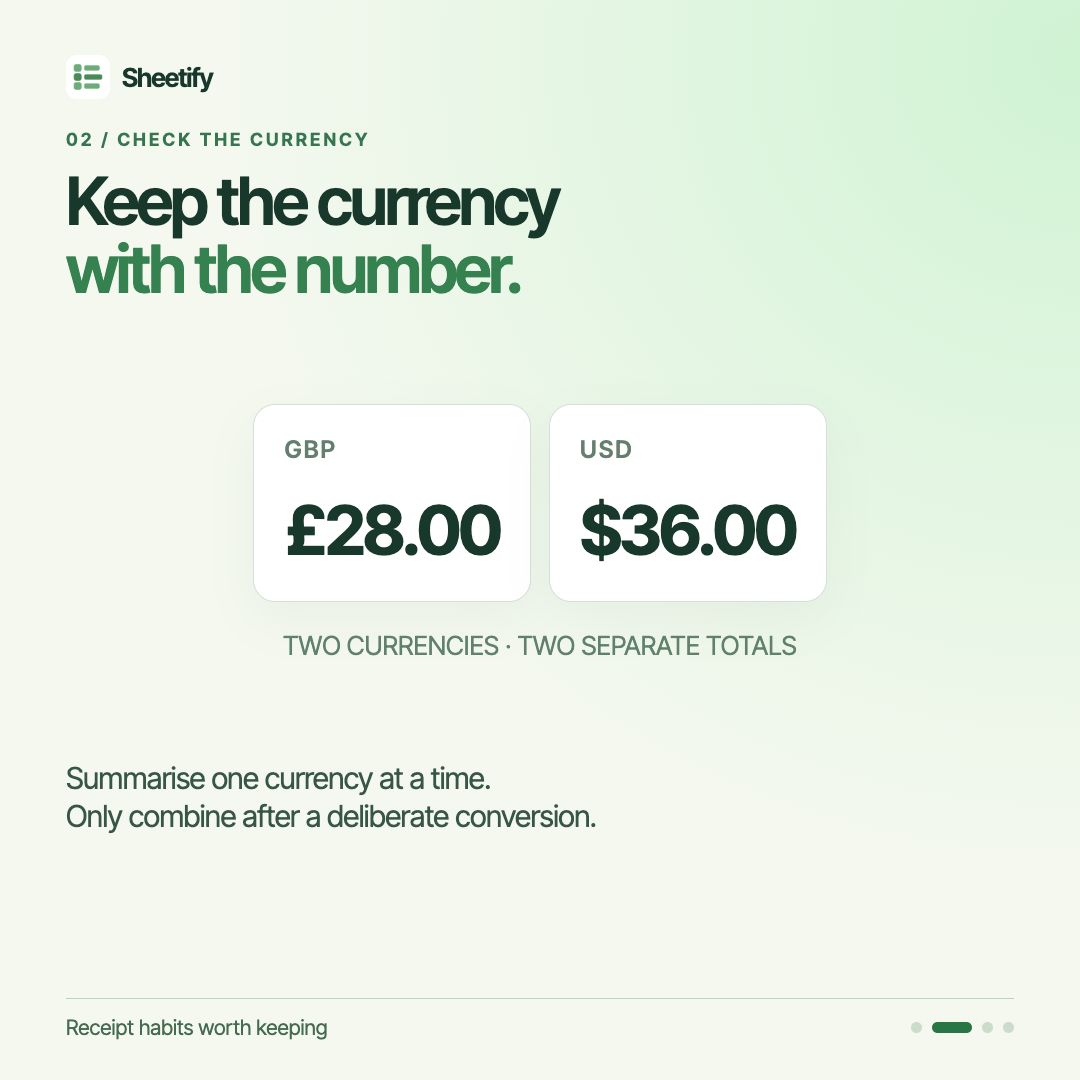
02 / CHECK THE CURRENCY
Keep the currency with the number.
GBP 28.00 and USD 36.00 belong in separate totals unless you deliberately convert them. Adding the two raw numbers would produce a figure without a meaningful common currency.
Check the receipt's currency and make sure your sheet records it consistently. Filter your monthly summary to one currency at a time, or use a conversion method you have chosen and documented.
The free Sheetify receipt tracker summarises a selected year and currency. It does not perform currency conversion.
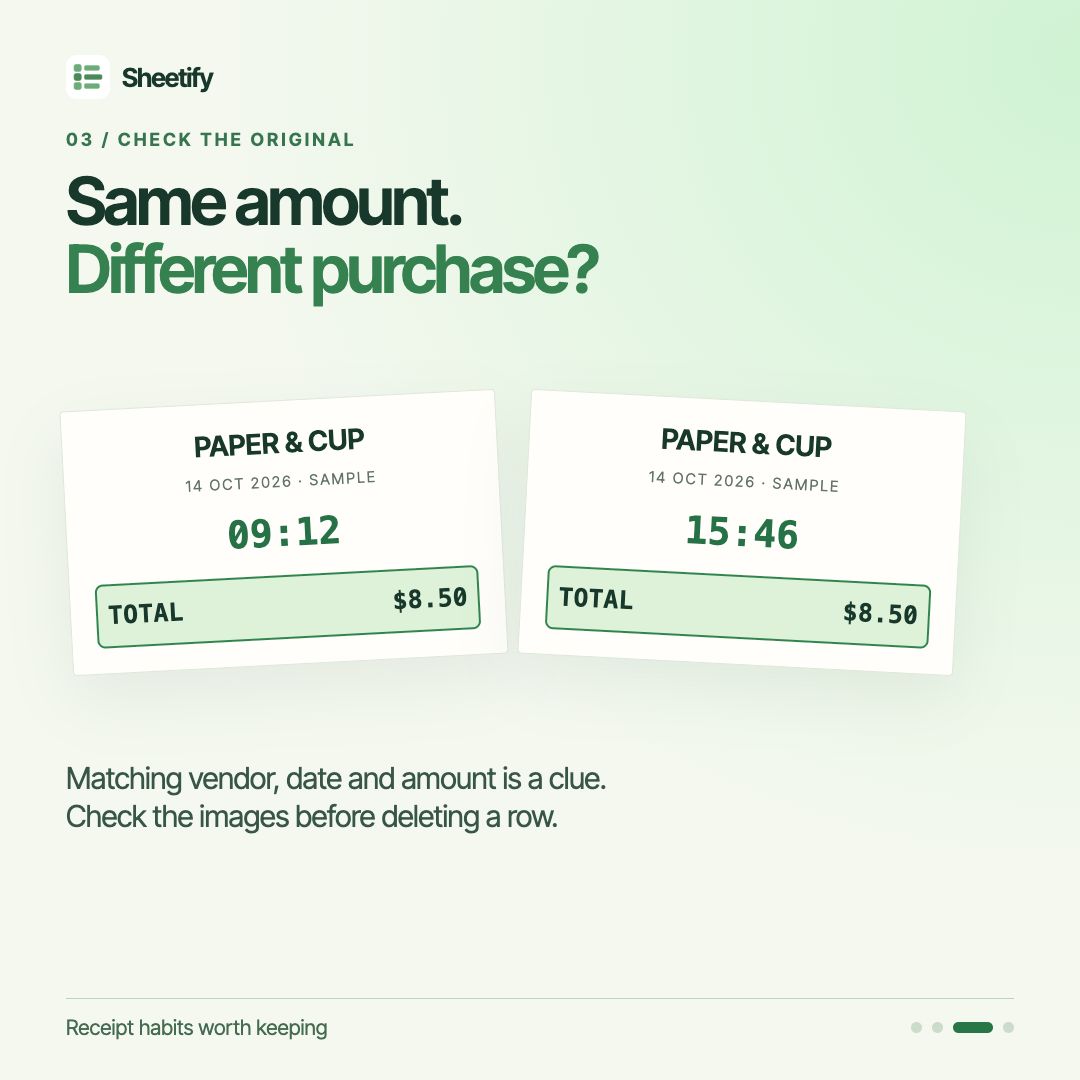
03 / CHECK THE ORIGINAL
Review a possible duplicate.
Matching vendor, date and amount can flag something worth checking. They do not, by themselves, prove that two rows describe the same purchase.
The examples show two purchases at the same fictional coffee shop on the same day. Both total USD 8.50, but their times differ. Open the receipt images and compare the time, items and any receipt reference before removing a row.
Keeping an image link in your spreadsheet makes that comparison easier. This is a review habit, not a claim that Sheetify automatically detects duplicates.
Keep the review step.
- Compare the captured amount with the final total.
- Check the currency before combining amounts.
- Open the original image before removing a possible duplicate.
With Sheetify, review extracted receipt details before sending them to your Google Sheet, with the receipt image saved in your Drive.
Illustrated examples with original music. This is an educational graphic, not an app recording. The checklist and examples above provide the same information as the video.
A clearer place for your receipts.
Use the free tracker for manual entry, or explore how Sheetify sends checked receipt details to your Google Sheet.
Sheetify is free to start on iOS and Android. Direct app delivery into the free tracker template has not been verified.